How to create the dictionaries
Firstly your ebooks and epapers should be inside inside a DevonThink database. Moreover each source should have its respective record in BibDesk. The "local URL" field of each record should have the DevonThink URL of the source. If you do not know how to do this you can read my post "How to connect a PDF file inside DevonThink with its record in BibDesk". Finally you should select the records in BibDesk which will constitute the records of the dictionary and you should have one TextMate txt file open. Now you are ready to execute either the AppleScript for the creation of the link dictionary with the titles or for the second kind of dictionary.
The AppleScript code for the link dictionary with the titles is the following:
A sample from the text which can be created is shown below:

The AppleScript code for the link dictionary with author-year compinations is the following:

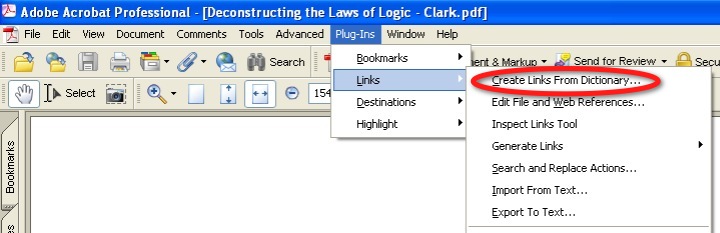
Now you are ready to go to Adobe Acrobat Pro and use the AutoBookmark plug-in. In the following screen shots you can see the detailed steps in order to create the new dictionaries.

 Now your link dictionary is ready.
Firstly your ebooks and epapers should be inside inside a DevonThink database. Moreover each source should have its respective record in BibDesk. The "local URL" field of each record should have the DevonThink URL of the source. If you do not know how to do this you can read my post "How to connect a PDF file inside DevonThink with its record in BibDesk". Finally you should select the records in BibDesk which will constitute the records of the dictionary and you should have one TextMate txt file open. Now you are ready to execute either the AppleScript for the creation of the link dictionary with the titles or for the second kind of dictionary.
The AppleScript code for the link dictionary with the titles is the following:
--2011-03-11
--http://organognosi.blogspot.com
--Works with AutoBookmark 3.7
tell application "BibDesk"
set these_items to the selection of document 1
if these_items is {} then error "Please select some contents."
repeat with this_item in these_items
set DevonThinkLink to the linked URL 1 of this_item
set PDfTitle to the value of the field "Title" of this_item
set keywords of this_item to keywords of this_item & "," & " title link"
set DictionaryLinkEntry to PDfTitle & tab & "uri:" & DevonThinkLink & "
"
tell application "TextMate"
activate
insert DictionaryLinkEntry
end tell
end repeat
end tell
A sample from the text which can be created is shown below:

The AppleScript code for the link dictionary with author-year compinations is the following:
--2011-03-11A sample from the text which can be created is shown below:
--http://organognosi.blogspot.com
tell application "BibDesk"
set these_items to the selection of document 1
if these_items is {} then error "Please select some contents."
repeat with this_item in these_items
try
set AuthorLink to the last name of the first author of this_item
set firstNameLink to the first name of the first author of this_item
set AbbrNormName to abbreviated normalized name of the first author of this_item
set YearLink to the publication year of this_item
set DevonThinkLink1 to the linked URL 1 of this_item
set DictionaryLinkEntry to AuthorLink & " " & YearLink & tab & "uri:" & DevonThinkLink1 & "
"
set DictionaryLinkEntry2 to AuthorLink & " (" & YearLink & tab & "uri:" & DevonThinkLink1 & "
"
set DictionaryLinkEntry3 to AuthorLink & " [" & YearLink & tab & "uri:" & DevonThinkLink1 & "
"
set DictionaryLinkEntry4 to AuthorLink & ", " & firstNameLink & " (" & YearLink & tab & "uri:" & DevonThinkLink1 & "
"
set DictionaryLinkEntry5 to AbbrNormName & " " & YearLink & tab & "uri:" & DevonThinkLink1 & "
"
set DictionaryLinkEntry6 to AbbrNormName & " (" & YearLink & tab & "uri:" & DevonThinkLink1 & "
"
tell application "TextMate"
activate
insert DictionaryLinkEntry
insert DictionaryLinkEntry2
insert DictionaryLinkEntry3
insert DictionaryLinkEntry4
insert DictionaryLinkEntry5
insert DictionaryLinkEntry6
end tell
end try
end repeat
end tell

Now you are ready to go to Adobe Acrobat Pro and use the AutoBookmark plug-in. In the following screen shots you can see the detailed steps in order to create the new dictionaries.
 |
 li
li
 |
| In this step you should select the txt file which was created by one of the two AppleScripts |


