Showing posts with label TextMate. Show all posts

2011/04/05

Automated creation of references with hyperlinks from Skim


In the post "Automated creation of a LaTeX compatible citation only from Skim! (with hyperlink included)" there is an AppleScript which creates a LaTeX reference in TextMate for the PDF file that you currently read in Skim. Now I will present an expanded and improved version of that AppleScript. Specifically the new AppleScript takes advantage of all my standardized notes in the first page of a PDF document.

These notes can be created automatically from the AppleScript in the post "How to create correctly the Skim notes which have the DEVONthink links, when you have already annotated the first page of the PDF document". Moreover you can find more information about these notes in my posts "How to put DevonThink links in Skim notes" and "Latin page numbers, Arabic page numbers and the fifth Skim note".

The references and hyperlinks that can be created from my new AppleScript are the following and correspond to the notes one through four:

1. A LaTeX reference to the exact PDF page which can be inserted in a MediaWiki page without any modifications or problems. Moreover, the necessary code for the creation of MediaWiki link is also included. An example is the following:
 (<rawtex>\cite{Deconstructing-the-Laws-of-Logic-Clark-2008a}</rawtex>: [x-devonthink-item://CDEC17B7-1EEE-42E1-B8C9-86A24C172BF3?page=2 27])
A prerequisite for the use of this reference is to have installed and properly customized the Wiki2LaTeX MediaWiki extension. I will write more about this and its importance in a future post.

2. A LaTeX reference that can be inserted in a text file together with the proper LaTeX code for the creation of the corresponding hyperlink. An example is the following:
(\cite{Deconstructing-the-Laws-of-Logic-Clark-2008a}: \href{x-devonthink-item://CDEC17B7-1EEE-42E1-B8C9-86A24C172BF3?page=2}{27})
3. A MediaWIki internal link to the wiki page of the source, followed by an external link to the PDF file itself. An example is the following:
([[Deconstructing the Laws of Logic - Clark]]: [x-devonthink-item://CDEC17B7-1EEE-42E1-B8C9-86A24C172BF3?page=2 27]) 
4. A DEVONthink url

How to use this AppleScript

You should run the AppleScript when you read a PDF file in Skim and you want to make a reference to the current page. Additionally, a TextMate file should be opened. After the execution you can select from a menu which kind of reference you would like to be created. All the necessary numbers for the hyperlinks and the references are automatically created with the help of the fifth note. You can see this AppleScript in action in the following video:


The AppleScript code is the following:
--2011-04-05
--http://organognosi.blogspot.com

tell application "Skim"
    activate
    set numberOfNote5 to (get text for note 5 of page 1 of document 1) as string
   
    set RefType to my chooseRefType({"Latex for MediaWiki", "Latex", "MediaWiki", "DEVONthink link"})
    if RefType is 0 then return
   
    tell document 1
        set currentPageNumber to get index of current page
        set currentPageNumberText to currentPageNumber as text
        set pageDevonThinkNumber to currentPageNumber - 1
        set pageDevonThinkNumberText to pageDevonThinkNumber as text
        set DevonThinkLink to get text of note RefType of page 1
        set theRealPage to currentPageNumber + numberOfNote5 as string
       
        tell application "TextMate"
            activate
            if RefType is 1 then
                insert DevonThinkLink
                delay 1
                tell application "System Events"
                    key code 123
                    key code 123
                end tell
                delay 1
                insert pageDevonThinkNumberText & " " & theRealPage
                tell application "System Events"
                    key code 124
                    key code 124
                end tell
            else if RefType is 2 then
                insert DevonThinkLink
                delay 1
                tell application "System Events"
                    key code 123
                    key code 123
                    key code 123
                    key code 123
                end tell
                delay 1
                insert pageDevonThinkNumberText
                tell application "System Events"
                    key code 124
                    key code 124
                end tell
                delay 1
                insert theRealPage
                tell application "System Events"
                    key code 124
                    key code 124
                end tell
            else if RefType is 3 then
                insert DevonThinkLink
                delay 1
                tell application "System Events"
                    key code 123
                    key code 123
                end tell
                delay 1
                insert pageDevonThinkNumberText & " " & theRealPage
                tell application "System Events"
                    key code 124
                    key code 124
                end tell
            else if RefType is 4 then
                insert DevonThinkLink
                delay 1
                tell application "System Events"
                    key code 51
                end tell
                delay 1
                insert pageDevonThinkNumberText
               
            end if
        end tell
       
    end tell


end tell

on chooseRefType(typeList)
    tell application "Skim"
        set theResult to choose from list typeList with prompt "Reference type:"
        if theResult is false then return 0
        set refTypeNumber to theResult as string
        if refTypeNumber is "Latex for MediaWiki" then
            return 1
        else if refTypeNumber is "Latex" then
            return 2
        else if refTypeNumber is "MediaWiki" then
            return 3
        else if refTypeNumber is "DEVONthink link" then
            return 4
        end if
    end tell
    return RefType
end chooseRefType

2011/03/11

How to automatically embed hyperlinks into citations and bibliographical entries of a downloaded PDF document! Part II

How to create the dictionaries

Firstly your ebooks and epapers should be inside inside a DevonThink database. Moreover each source should have its respective record in BibDesk. The "local URL" field of each record should have the DevonThink URL of the source. If you do not know how to do this you can read my post "How to connect a PDF file inside DevonThink with its record in BibDesk". Finally you should select the records in BibDesk which will constitute the records of the dictionary and you should have one TextMate txt file open. Now you are ready to execute either the AppleScript for the creation of the link dictionary with the titles or for the second kind of dictionary.

The AppleScript code for the link dictionary with the titles is the following:
--2011-03-11
--http://organognosi.blogspot.com
--Works with AutoBookmark 3.7
tell application "BibDesk"
    set these_items to the selection of document 1
    if these_items is {} then error "Please select some contents."
       
    repeat with this_item in these_items
        set DevonThinkLink to the linked URL 1 of this_item
        set PDfTitle to the value of the field "Title" of this_item
        set keywords of this_item to keywords of this_item & "," & " title link"
        set DictionaryLinkEntry to PDfTitle & tab & "uri:" & DevonThinkLink & "
"
        tell application "TextMate"
            activate
            insert DictionaryLinkEntry
        end tell
    end repeat
end tell

A sample from the text which can be created is shown below:


The AppleScript code for the link dictionary with author-year compinations is the following:
--2011-03-11
--http://organognosi.blogspot.com

tell application "BibDesk"
    set these_items to the selection of document 1
    if these_items is {} then error "Please select some contents."
   
    repeat with this_item in these_items
        try
            set AuthorLink to the last name of the first author of this_item
            set firstNameLink to the first name of the first author of this_item
            set AbbrNormName to abbreviated normalized name of the first author of this_item
           
            set YearLink to the publication year of this_item
            set DevonThinkLink1 to the linked URL 1 of this_item
            set DictionaryLinkEntry to AuthorLink & " " & YearLink & tab & "uri:" & DevonThinkLink1 & "
"
            set DictionaryLinkEntry2 to AuthorLink & " (" & YearLink & tab & "uri:" & DevonThinkLink1 & "
"
            set DictionaryLinkEntry3 to AuthorLink & " [" & YearLink & tab & "uri:" & DevonThinkLink1 & "
"
            set DictionaryLinkEntry4 to AuthorLink & ", " & firstNameLink & " (" & YearLink & tab & "uri:" & DevonThinkLink1 & "
"
            set DictionaryLinkEntry5 to AbbrNormName & " " & YearLink & tab & "uri:" & DevonThinkLink1 & "
"
            set DictionaryLinkEntry6 to AbbrNormName & " (" & YearLink & tab & "uri:" & DevonThinkLink1 & "
"
           
            tell application "TextMate"
                activate
                insert DictionaryLinkEntry
                insert DictionaryLinkEntry2
                insert DictionaryLinkEntry3
                insert DictionaryLinkEntry4
                insert DictionaryLinkEntry5
                insert DictionaryLinkEntry6
            end tell
        end try
    end repeat
end tell
A sample from the text which can be created is shown below:


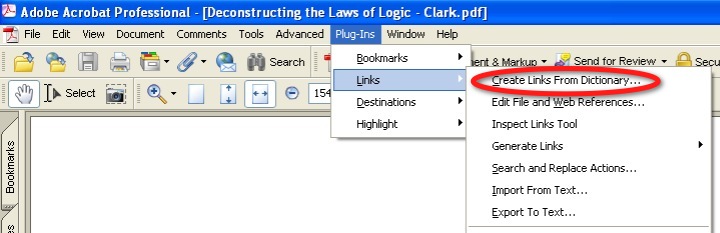
Now you are ready to go to Adobe Acrobat Pro and use the AutoBookmark plug-in. In the following screen shots you can see the detailed steps in order to create the new dictionaries.


In this step you should select the txt file which was created by one of the two AppleScripts
Now your link dictionary is ready.

How to automatically embed hyperlinks into citations and bibliographical entries of a downloaded PDF document! Part I

Nowadays, it is possible for a researcher to amass a huge number of electronic papers and books about his specialized area of interest. Naturally there are a lot of cross-references between these sources. The usual way of managing these files is the creation of a bibliographical database in one of the numerous relative programs like EndNote, Papers, JabRef and BibDesk. In this post I will try to present an exciting new way of "managing" your files which in a way makes managing them obsolete!

Specifically I created a workflow for embedding DevonThink hyperlinks into the very citations and bibliography entries of a PDF file. As a result when you want to read a cited paper or book you do not need to go to your bibliography manager program or even worse to the folder hierarchy of your hard drive in order to find the file. Instead you can just click the citation or the title or the author of the bibliography entry and the respective PDF file opens instantly! The magic of DevonThink hyperlinks in action!

The required tools/programs for this dream to come true are the following:
  1. Adobe Acrobat Pro for Windows
  2. AutoBookmark plug-in for Adobe Acrobat Pro
  3. A Windows virtual machine 
  4. DevonThink
  5. BibDesk
  6. TextMate
  7. Link dictionaries
  8. The AppleScripts for creating automatically the link dictionaries from BibDesk
More details about the workflow

AutoBookmark searches page text for occurrences of specific words or phrases and generates links annotations according to the user specifications. Link dictionary is a collection of search terms (words, phrases and etc.) and corresponding link actions. When it finds a search term from a dictionary it automatically creates a link annotation using a link action that is associated with it. Each search term should be unique within a link dictionary (excerpt from AutoBookmark help file). So you need to have an appropriate link dictionary so as the hyperlinks to the sources to be created automatically by AutoBookmark.

For our case I consider optimal the use of two different dictionaries each with its own advantages and disadvantages. The first contains  various possible forms of author-year citations e.g. Clark 2008, Clark (2008, Clark Stephen (2008, Clark S. 2008, Clark S. (2008. The advantage of this dictionary is that the matches are almost 100% unique. However the probability of the match is somewhat small because of the high variability in the way that the citations are made. The second contains the source titles. Now the situation is the complete opposite because you can very easily have false positive matches if the title is too generic but there is no case of a missing match if the title is adequately complex. 

In my next post I will describe how you can create the link dictionaries from your Mac.

2011/03/07

Automated creation of a LaTeX compatible citation only from Skim! (with hyperlink included)

In the post "DevonThink links in Skim notes and AppleScript" I presented how you can create to a PDF file a number of Skim notes with various versions of references to itself. An example of these notes is shown below:


Then you can insert manually the BibTeX cite command in the fist and the second note.


Now you are ready to capitalize on these four little notes!

The first way was presented in the post "Automated summary creation linked with the source pfd file" where the respective AppleScript use the fourth note:
 set pdfDevonThinkLink to (get text for note 4 of page 1 of document 1) as string
In the AppleScript of this post the second note will be used.

As you understand the numbering of these notes plays a fundamental role in the effective use of these AppleScripts. For this reason it is required that you create these notes when there are no annotations in the first page of the PDF file. Otherwise these four notes will take another index number and you will need to adjust accordingly the AppleScript (2011-04-05, an alternative solution is to use the AppleScript in my post "How to create correctly the Skim notes which have the DEVONthink links, when you have already annotated the first page of the PDF document").

One of the most important reasons for which I have chosen to write my essays using LaTeX is that it makes possible the creation of rich hypertexts. By rich I mean that the final PDF document can have all the sorts of different kinds of links as you can see in the lower part of my mind map "The many faces of links". In order to create these links you should use the Hyperref package.

If you are accustomed to the LaTeX markup code you will recognize that the second note includes a proper citation as it is required by the Hyperref package:

(\cite{Deconstructing-the-Laws-of-Logic-Clark-2008a}: \href{x-devonthink-item://CDEC17B7-1EEE-42E1-B8C9-86A24C172BF3?page=}{})
The only things that are missing from the above citation are two numbers: the number for the DevonThink link and the the number of the referred page.

Now lets say that you would like to refer to the 27th page of the paper which is the third page of the PDF file. From now on you do not have to manually paste the necessary code and the appropriate numbers in your txt file but an AppleScript can do it for you!

There is only one but... you want the number that is shown in your text to be 27 but the number which is attached to the DevonThink link to be 2 (3-1: if you do not know why, read my post It's all about hyperlinks!). My AppleScript has the ability to recognize in which page you currently are but it cannot recognize the written number in the page! So you will have to enter it manually.

 The AppleScript code is the following:
--2011-03-07
--http://organognosi.blogspot.com

display dialog "Give the number which is written in you current page:" default answer "" buttons {"Cancel", "OK"} default button 2
set writtenNumber to text returned of the result as text

tell application "Skim"
    activate
   
    tell document 1
        set currentPageNumber to get index of current page
        set pageDevonThinkNumber to currentPageNumber - 1
        set pageDevonThinkNumberText to pageDevonThinkNumber as text
        set DevonThinkLink to get text of note 2 of page 1
       
        tell application "TextMate"
            activate
            insert DevonThinkLink
            tell application "System Events"
                key code 123
                key code 123
                key code 123
                key code 123
            end tell
            delay 0.5
            insert pageDevonThinkNumberText
            tell application "System Events"
                key code 124
                key code 124
            end tell
            delay 0.5
            insert writtenNumber
        end tell
    end tell
end tell

If you do not want to write even this number you can create a fifth note which will have only the written number of the first page and then the AppleScript can compute the rest.

--2011-03-07
--http://organognosi.blogspot.com

tell application "Skim"
    activate
   
    tell document 1
        set currentPageNumber to get index of current page
        set pageDevonThinkNumber to currentPageNumber - 1
        set pageDevonThinkNumberText to pageDevonThinkNumber as text
        set DevonThinkLink to get text of note 2 of page 1
        set writtenNumberOfFirstPage to (get text for note 5 of page 1) as string
        set currentPageWrittenNumber to currentPageNumber + writtenNumberOfFirstPage - 1 as string
       
       
        tell application "TextMate"
            activate
            insert DevonThinkLink
            tell application "System Events"
                key code 123
                key code 123
                key code 123
                key code 123
            end tell
            delay 0.5
            insert pageDevonThinkNumberText
            tell application "System Events"
                key code 124
                key code 124
            end tell
            delay 0.5
            insert currentPageWrittenNumber
        end tell
    end tell
end tell

Finally the easiest case is when the page numbers of the PDF file and the printed book coincide. In this case you can still use the above AppleScript if you write in the fifth note the number 1. If you do not want to use a fifth note the AppleScript is the following:

--2011-03-07
--http://organognosi.blogspot.com

tell application "Skim"
    activate
   
    tell document 1
        set currentPageNumber to get index of current page
        set pageDevonThinkNumber to currentPageNumber - 1
        set pageDevonThinkNumberText to pageDevonThinkNumber as string
        set currentPageNumberText to currentPageNumber as string
        set DevonThinkLink to get text of note 2 of page 1
       
       
        tell application "TextMate"
            activate
            insert DevonThinkLink
            tell application "System Events"
                key code 123
                key code 123
                key code 123
                key code 123
            end tell
            delay 0.5
            insert pageDevonThinkNumberText
            tell application "System Events"
                key code 124
                key code 124
            end tell
            delay 0.5
            insert currentPageNumberText
        end tell
    end tell
end tell
Before you execute any of the above AppleScripts you should have a TextMate document opened. Moreover the cursor should be at the point in which you want the citation to be inserted.

2011-04-05
There is an improved version of the above AppleScript in my post "Automated creation of references with hyperlinks from Skim"


2011/02/12

Some tools of the trade

I use the following hardware:
  • a MacBook Pro 17in
  • a MacMini (as a server for my wikis and my ebooks library)
  • an iPad
  • a Time Capsule
  • an iPhone 3G
  • several external hard drives (for backup)
  • a 27in LG monitor

In my academic workflow I use the following programs:
  • Skim: for reading papers and books (in pdf format)
  • Calibre: for organizing all my ebooks (read and unread)
  • DevonThink: for organizing everything that I have read
  • BibDesk: for reference management and automated bibliography creation
  • MediaWIki: for notes management
  • TextMate and LaTex: for writing my papers
  • AppleScript: for automating my workflow