Showing posts with label MediaWiki. Show all posts

2011/06/18

Convert DEVONthink tags to MediaWiki categories

DEVONthink has a quite efficient tagging capability. Especially, the autocomplete feature of the tag bar, at the lower part of a DEVONthink window, saves me a lot of time and provides increased consistency in my tags.

Moreover, I maintain a separate page in my wiki for each book or paper that I have read. There I write all my notes and thoughts about each source. MediaWiki's name for tag is category and the required markup code for it is the following:
[[Category:tagName]] 
As I did not want to insert manually the tags for each source twice I wrote an AppleScript, which converts DEVONthink tags to MediaWiki categories. One item should be selected in DEVONthink before executing the script. The result is sent to the clipboard.

The AppleScript code is the following:
--2011-06-18
--http://organognosi.blogspot.com

tell application "DEVONthink Pro"
    set thisSelection to the selection
    if thisSelection is {} then error "Please select something"
    if (length of thisSelection) is greater than 1 then error "Please select only one item"
    set the clipboard to ""
    set newCategories to ""
    repeat with thisItem in thisSelection
        set tagsItem to tags of thisItem
        repeat with eachTag in tagsItem
            set tagForCategory to eachTag
            if tagForCategory is in {"Linked with MediaWiki"} then
                set newCategories to newCategories
            else
                set newCategories to "[[category:" & tagForCategory & "]] "
                set the clipboard to (the clipboard) & newCategories
            end if
        end repeat
    end repeat
end tell

2011/06/10

Export Skim notes according to their highlight colors

Adam Cronkright mentioned, in a thread in the Skim forum, that he uses different colors for highlighting various sections of a PDF, which have a common characteristic (e.g. author's points he agrees with, points he disagrees with, good phrases...). His problem is that he would like to have an efficient way to organize these different categories of notes and Skim's present features does not help him much to this end.

I think that a way to solve this problem is to use a specialized app for note management and an AppleScript, which exports Skim notes according to their color. So I found a reason to write an additional AppleScript or actually two!

The first is a simplified version, which has only one prerequisite for execution. Particularly, you need to use one or more of the following colors: ice, honey drew, flora, lemon, cantaloupe, silver, which are shown below.


You can change a color in the Favorite Colors by dragging a new color from the Color Panel (Tools> Show Colors) and drop it on the Favorite Colors toolbar item. Hold down the Option key to add a new color. You can remove a color from the Favorite Colors by dragging it to the Trash (from Tips and Tricks page in Skim's wiki).

Each color in Skim is represented as a list of four numbers (red, green, blue, alpha). The fourth number is constant (65535). For example, the ice color is represented by the list  {26214, 65535, 65535, 65535}. So you can change the hardwired colors in the scripts if you know the corresponding RGB (red, green, blue) code in 16-bit format for your preferred colors. Then you can add it in in the chooseColor subroutine (see the AppleScript below). 

When you execute the script the following windows will open consecutively:


You can choose more than one colors by pressing cmd + click.


If you choose "Some" then you will be asked to give the range of pages from which the notes will be extracted.


The result is sent to the clipboard. The code is the following:
--2011-06-10
--http://organognosi.blogspot.com/
tell application "Skim"
    set the clipboard to ""
    set numberOfPages to count pages of document 1
    activate
    set myColorCodes to my chooseColor()
    display dialog "Do you want to export all the notes or some of them?" buttons {"All", "Some"} default button 1
    set answer to button returned of the result
   
    if answer is "All" then
        set firstPage to "1" as number
        set lastPage to numberOfPages
        set the clipboard to "Skim notes" & return
    else
        display dialog "Give the number of the first page." default answer ""
        set firstPage to text returned of the result as number
       
        display dialog "Give the number of the last page" default answer ""
        set lastPage to text returned of the result as number
    end if
   
    repeat with currentPage from firstPage to lastPage
        set pageNotes to notes of page currentPage of document 1
        exportPageNotes(pageNotes, currentPage, myColorCodes) of me
    end repeat
   
end tell

on exportPageNotes(listOfNotes, pageForProcessing, myColorCodes)
    tell application "Skim"
       
        set currentPDFpage to pageForProcessing
        repeat with coloredNote in listOfNotes
           
            repeat with i from 1 to the count of myColorCodes
                if color of coloredNote is item i of myColorCodes then
                    set noteText to get text for coloredNote
                   
                    set the clipboard to (the clipboard) & noteText & return & return
                end if
            end repeat
        end repeat
       
    end tell
end exportPageNotes

on chooseColor()
    set selectedColors to (choose from list {"ice", "honey drew", "flora", "lemon", "cantaloupe", "silver"} with prompt ("Choose the color of notes for exporting (you can select multiple colors):") default items {"lemon"} with multiple selections allowed)
   
    set colorCodes to {}
    set noteColor to ""
    repeat with noteCol in selectedColors
        set noteColor to noteCol as text
        if noteColor is "ice" then
            set end of colorCodes to {26214, 65535, 65535, 65535}
        else if noteColor is "honey drew" then
            set end of colorCodes to {52428, 65535, 26214, 65535}
        else if noteColor is "flora" then
            set end of colorCodes to {26214, 65535, 26214, 65535}
        else if noteColor is "lemon" then
            set end of colorCodes to {65535, 65535, 2, 65535}
        else if noteColor is "cantaloupe" then
            set end of colorCodes to {65535, 52428, 26214, 65535}
        else if noteColor is "silver" then
            set end of colorCodes to {52428, 52428, 52428, 65535}
        end if
    end repeat
   
    return colorCodes
end chooseColor

The second AppleScript is that which I use and is quite more complicated. As you may know, my preferred program for managing notes is MediaWiki so the AppleScript's result is customized for import in a MediaWiki page.

Some additional features of this AppleScript are the following:
  • a hyperlink to the exact PDF page is created for each exported note
  • the annotation's date and time are added at the end of each exported note
  • the notes from each page are separated by a line 
  • the extended text of the note is exported as well
  • the first five notes of the first page are not exported
  • the written page numbers should be given in the dialog windows

If you want to use this AppleScript you need firstly to create the five Skim notes in the first PDF page as I describe in my post "How to create correctly the Skim notes which have the DEVONthink links, when you have already annotated the first page of the PDF document.

The code is the following:


--2011-06-10
--http://organognosi.blogspot.com/
tell application "Skim"
    set the clipboard to ""
    set numberOfNote5 to (get text for note 5 of page 1 of document 1) as string
    set pdfTitle to get (extended text of note 4) of page 1 of document 1 as string
    set numberOfPages to count pages of document 1
   
    activate
    set myColorCodes to my chooseColor() --εκτός των loops πρέπει να βρίσκεται, μια φορά το θέτεις
   
    display dialog "Do you want to export all the notes or only some of them?" buttons {"All", "Some"} default button 1
    set answer to button returned of the result
   
    if answer is "All" then
        set firstPage to "1" as number
        set lastPage to numberOfPages
        set the clipboard to "===Skim notes===" & return
    else
        display dialog "Give me the written number of the first page." default answer ""
        set firstPageWritten to text returned of the result as number
        set firstPage to firstPageWritten - numberOfNote5 as number
       
        display dialog "Give me the written numbers of the last page" default answer ""
        set lastPageWritten to text returned of the result as number
        set lastPage to lastPageWritten - numberOfNote5 as number
       
        set the clipboard to (the clipboard) & "Notes from \"[[@" & pdfTitle & "]]\" (pages " & firstPage & " - " & lastPage & ") <br />" & return
       
    end if
   
    repeat with currentPage from firstPage to lastPage
        --special provision for page 1
        if currentPage is 1 then
            set pageNotes to notes of page 1 of document 1
            set notesAfter5 to items 6 thru -1 of pageNotes
           
            exportPageNotes(notesAfter5, currentPage, myColorCodes) of me
        else
            set pageNotes to notes of page currentPage of document 1
           
            exportPageNotes(pageNotes, currentPage, myColorCodes) of me
        end if
    end repeat
   
end tell

on exportPageNotes(listOfNotes, pageForProcessing, myColorCodes)
    tell application "Skim"
        set numberOfNote5 to (get text for note 5 of page 1 of document 1) as string
        set pdfTitle to get (extended text of note 4) of page 1 of document 1 as string
        set numberOfPageNotes to count notes of page pageForProcessing of document 1
        set theWrittenPage to pageForProcessing + numberOfNote5 as string
        set pdfDevonThinkLink to (get text for note 4 of page 1 of document 1) as string
        set pdfDevonThinkLinkWihtoutZero to (text 1 thru ((length of pdfDevonThinkLink) - 1) of pdfDevonThinkLink) as string
       
        repeat with coloredNote in listOfNotes
           
            repeat with i from 1 to the count of myColorCodes
                if color of coloredNote is item i of myColorCodes then
                    set pdfText to get text for coloredNote
                    set pdfText2 to get extended text of coloredNote as text
                    set fullNoteText to pdfText & " " & pdfText2
                   
                    set annotationDate to modification date of coloredNote as text
                   
                    set pageForDevonThinkLink to pageForProcessing - 1
                   
                    --for use with MediaWiki semantic annotations
                    set firstCharacter to get the character 1 of fullNoteText
                    if firstCharacter = "[" then
                        set endofNote to "]]]"
                    else
                        set endofNote to "]"
                    end if
                   
                    set textAfterFullNoteText to "[" & pdfDevonThinkLinkWihtoutZero & pageForDevonThinkLink & " p. " & theWrittenPage & endofNote & " <small>(" & annotationDate & ")</small>"
                    set textForTextMate to fullNoteText & " " & textAfterFullNoteText
                    set textForTextMate2 to replaceText(textForTextMate, "missing value", "") of me
                    set textForTextMate3 to replaceText(textForTextMate2, " ()", "") of me
                   
                    set the clipboard to (the clipboard) & textForTextMate3 & return
                   
                end if
            end repeat
        end repeat
       
        set theSeperationLine to ""
        repeat with coloredNote in listOfNotes
            if numberOfPageNotes > 0 then
                repeat with i from 1 to the count of myColorCodes
                    if (color of coloredNote is item i of myColorCodes) then
                        set theSeperationLine to "----" & return
                        exit repeat
                    end if
                end repeat
            end if
        end repeat
        set the clipboard to (the clipboard) & theSeperationLine
    end tell
end exportPageNotes

on replaceText(thisText, searchString, replacementString)
    set AppleScript's text item delimiters to the searchString
    set the itemList to every text item of thisText
    set AppleScript's text item delimiters to the replacementString
    set thisText to the itemList as string
    set AppleScript's text item delimiters to {""}
    return thisText
end replaceText

on chooseColor()
    set selectedColors to (choose from list {"ice", "honey drew", "flora", "lemon", "cantaloupe", "silver"} with prompt ("Choose the color of notes for exporting (you can select multiple colors):") default items {"lemon"} with multiple selections allowed)
    --selectedColors is a list of lists
    set colorCodes to {}
    set noteColor to ""
    repeat with noteCol in selectedColors
        set noteColor to noteCol as text
        if noteColor is "ice" then
            set end of colorCodes to {26214, 65535, 65535, 65535}
        else if noteColor is "honey drew" then
            set end of colorCodes to {52428, 65535, 26214, 65535}
        else if noteColor is "flora" then
            set end of colorCodes to {26214, 65535, 26214, 65535}
        else if noteColor is "lemon" then
            set end of colorCodes to {65535, 65535, 2, 65535}
        else if noteColor is "cantaloupe" then
            set end of colorCodes to {65535, 52428, 26214, 65535}
        else if noteColor is "silver" then
            set end of colorCodes to {52428, 52428, 52428, 65535}
           
        end if
    end repeat
   
    return colorCodes
end chooseColor

I hope this AppleScript will help Adam! Anyway, your post was an inspiration for me. Finally, I would like to thank Martin who informed me about it.

2011/05/31

Create MediaWiki links to local folders and files without any extension!

In my previous post "Embed AppleScripts in a MediaWiki page", I showed how an AppleScript, embedded in a HTML link, can be inserted in a MediaWiki page. A way that I use this MediaWiki feature is by creating links to local files and folders. Moreover, after executing the AppleScript, the files open with their assigned applications. Finally as you can see in the same post, the whole link syntax is quite complicated so I wrote an AppleScript, which creates automatically all the required code for the selected files and folders in Finder. The names of them should be in Latin characters.

The AppleScript code is the following:

--2011-05-31
--http://organognosi.blogspot.com

tell application "Finder"
    set selectedItems to the selection
    if selectedItems is {} then error "Please select some contents."
    set the clipboard to ""
    repeat with selectedItem in selectedItems
        set selectedItem to selectedItem as string
        set encodedText to my encode_URL_string(selectedItem)
       
        set embeddedAppleScript to "<html>" & return & "<a href=\"" & "apple" & "script" & "://com.apple.scripteditor?action=new&script= tell%20application%20%22Finder%22%0D
%09open%20(alias%20%22" & encodedText & "%22)%0D" & return & "end%20tell\"l>" & selectedItem & "</a>" & return & "</html>"
       
        set the clipboard to (the clipboard) & embeddedAppleScript & "<br/>" & return
    end repeat
end tell

--Text handlers from Apple to encode the selectedItem string
property allowed_URL_chars : (characters of "$-_.+!*'(),1234567890abcdefghijklmnopqrstuvwxyz")
on encode_URL_string(this_item)
    set character_list to (characters of this_item)
    repeat with i from 1 to number of items in character_list
        set this_char to item i of character_list
        if this_char is not in allowed_URL_chars then set item i of character_list to my encode_URL_char(this_char)
    end repeat
    return character_list as string
end encode_URL_string

property hex_list : (characters of "0123456789ABCDEF")
on encode_URL_char(this_char)
    set ASCII_num to (ASCII number this_char)
    set x to item ((ASCII_num div 16) + 1) of hex_list
    set y to item ((ASCII_num mod 16) + 1) of hex_list
    return ("%" & x & y) as string
end encode_URL_char

2011/05/29

Embed AppleScripts in a MediaWiki page

You can embed an AppleScript in a MediaWiki page if you insert the script as the URL in a proper HTML link. Particularly, the HTML link syntax looks like this:
<a href="URL">Link text</a>
The AppleScript code should be converted in a format which is compatible with HTML URLs. For example, each space in the script should be replaced by the string %20, each tab by %09 and each enter by %0D. Moreover, the "applescript://" URL scheme will be used and the whole link should be within <html>, </html> tags.   Fortunately the whole conversion can be done automatically by an AppleScript or using the freeware AppleScriptHTML app.

Finally, raw HTML code is not allowed by default in a public wiki for security reasons but if you maintain a private wiki you can permit it by setting
$wgRawHtml = true;
in the LocalSettings.php file.

For example, suppose you want to embed the following AppleScript
tell application "Finder"
    open (alias "MBSystem:Users:MB:Downloads:")
end tell
which opens the "Downloads" folder in a Finder window. Then, you should write the following code in a MediaWiki page:
<html>
<a href="applescript://com.apple.scripteditor?action=new&script= tell%20application%20%22Finder%22%0D
%09open%20(alias%20%22MBSystem%3AUsers%3AMB%3ADownloads%3A%22)%0D
end%20tell"l>MBSystem:Users:MB:Downloads:</a>
</html>
and you will see the link, after saving the page.


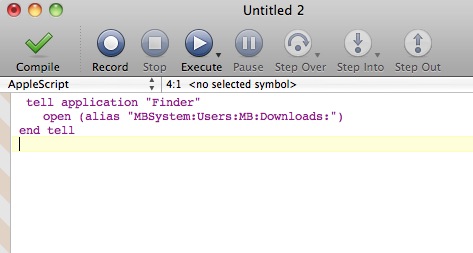
Afterwards, every time you click the link an AppleScript editor window opens with the AppleScript code inside it, as is shown in the next image.

Now, you may press cmd + R (executes the script), cmd + W (closes the window) and cmd + D (without saving)!

In my next post, I will present how you can create automatically HTML links to local files and folders, with AppleScript code inside them, which can be embedded in a MediaWiki page.

2011/05/17

Recreate the folder and file hierarchy in text form compatible with MediaWiki syntax

Let's say we have the following folder and file structure and we would like to pass it as text in a MediaWiki page.

With the AppleScript of this post you can create automatically the necessary text, which is for our example the following:

===DevonThink scripts===
Number of files: 0<pre>/MBSystem/Users/MB/Downloads/DevonThink scripts/</pre>

====Camino====
Number of files: 3<pre>/MBSystem/Users/MB/Downloads/DevonThink scripts/Camino/</pre>
Add PDF document to DEVONthink.scpt<br/>
Add link to DEVONthink.scpt<br/>
Add web document to DEVONthink.scpt<br/>

====DEVONagent====
Number of files: 11<pre>/MBSystem/Users/MB/Downloads/DevonThink scripts/DEVONagent/</pre>
Add PDF document to DEVONthink.scpt<br/>
Add abstracts to DEVONthink Pro.scpt<br/>
Add linked images to DEVONthink's downloads.scpt<br/>
Add linked images to DEVONthink.scpt<br/>
Add links to DEVONthink's downloads.scpt<br/>
Add links to DEVONthink.scpt<br/>
Add page to DEVONthink.scpt<br/>
Add selection to DEVONthink.scpt<br/>
Add tabs to DEVONthink.scpt<br/>
Add text to DEVONthink.scpt<br/>
Add web document to DEVONthink.scpt<br/>

====Firefox====
Number of files: 3<pre>/MBSystem/Users/MB/Downloads/DevonThink scripts/Firefox/</pre>
Add PDF document to DEVONthink.scpt<br/>
Add link to DEVONthink.scpt<br/>
Add web document to DEVONthink.scpt<br/>

====endo====
Number of files: 1<pre>/MBSystem/Users/MB/Downloads/DevonThink scripts/endo/</pre>
Add news to DEVONthink.scpt<br/>
As you can see the folder hierarchy is recreated as a hierarchy of MediaWiki sections. Also the number of files in each folder and its path are added under the name of the corresponding section. If you choose to apply this AppleScript in a folder structure with thousands of files there will no be any problem but it will take a long time to finish.  The result is sent to the clipboard.

The AppleScript code is the following:
set folderContents to show_folder_hierarchy(choose folder, "=") of me

set the clipboard to folderContents
--this subroutine is an expansion of an example from the book Learn AppleScript - The Comprehensive Guide to Scripting on Mac OS X (p. 485-486)
on show_folder_hierarchy(the_folder, the_indent)
    --process this folder
    tell application "Finder"
        set folderContents to get files of the_folder
        set numberOfFiles to count items of folderContents
       
        set folderName to the_folder as alias
        set folderNamePOSIX to get the POSIX path of folderName
        set folderPATH to "<pre>" & folderNamePOSIX & "</pre>"
       
        set fileNames to ""
        repeat with currentFile from 1 to numberOfFiles
            set fileNames to fileNames & name of item currentFile of folderContents & "<br/>" & return
        end repeat
        set the_result to the_indent & "==" & name of the_folder & "==" & the_indent & return & "Number of files: " & numberOfFiles & folderPATH & return & fileNames & return
    end tell
   
    --process each sub-folder in turn
    tell application "Finder"
        repeat with sub_folder_ref in (get every folder of the_folder)
            set the_result to the_result & my show_folder_hierarchy(contents of sub_folder_ref, the_indent & "=")
        end repeat
    end tell
    return the_result
   
end show_folder_hierarchy
2011-05-20 I updated the code which creates the POSIX paths of the folders.  
 

2011/04/05

Automated creation of references with hyperlinks from Skim


In the post "Automated creation of a LaTeX compatible citation only from Skim! (with hyperlink included)" there is an AppleScript which creates a LaTeX reference in TextMate for the PDF file that you currently read in Skim. Now I will present an expanded and improved version of that AppleScript. Specifically the new AppleScript takes advantage of all my standardized notes in the first page of a PDF document.

These notes can be created automatically from the AppleScript in the post "How to create correctly the Skim notes which have the DEVONthink links, when you have already annotated the first page of the PDF document". Moreover you can find more information about these notes in my posts "How to put DevonThink links in Skim notes" and "Latin page numbers, Arabic page numbers and the fifth Skim note".

The references and hyperlinks that can be created from my new AppleScript are the following and correspond to the notes one through four:

1. A LaTeX reference to the exact PDF page which can be inserted in a MediaWiki page without any modifications or problems. Moreover, the necessary code for the creation of MediaWiki link is also included. An example is the following:
 (<rawtex>\cite{Deconstructing-the-Laws-of-Logic-Clark-2008a}</rawtex>: [x-devonthink-item://CDEC17B7-1EEE-42E1-B8C9-86A24C172BF3?page=2 27])
A prerequisite for the use of this reference is to have installed and properly customized the Wiki2LaTeX MediaWiki extension. I will write more about this and its importance in a future post.

2. A LaTeX reference that can be inserted in a text file together with the proper LaTeX code for the creation of the corresponding hyperlink. An example is the following:
(\cite{Deconstructing-the-Laws-of-Logic-Clark-2008a}: \href{x-devonthink-item://CDEC17B7-1EEE-42E1-B8C9-86A24C172BF3?page=2}{27})
3. A MediaWIki internal link to the wiki page of the source, followed by an external link to the PDF file itself. An example is the following:
([[Deconstructing the Laws of Logic - Clark]]: [x-devonthink-item://CDEC17B7-1EEE-42E1-B8C9-86A24C172BF3?page=2 27]) 
4. A DEVONthink url

How to use this AppleScript

You should run the AppleScript when you read a PDF file in Skim and you want to make a reference to the current page. Additionally, a TextMate file should be opened. After the execution you can select from a menu which kind of reference you would like to be created. All the necessary numbers for the hyperlinks and the references are automatically created with the help of the fifth note. You can see this AppleScript in action in the following video:


The AppleScript code is the following:
--2011-04-05
--http://organognosi.blogspot.com

tell application "Skim"
    activate
    set numberOfNote5 to (get text for note 5 of page 1 of document 1) as string
   
    set RefType to my chooseRefType({"Latex for MediaWiki", "Latex", "MediaWiki", "DEVONthink link"})
    if RefType is 0 then return
   
    tell document 1
        set currentPageNumber to get index of current page
        set currentPageNumberText to currentPageNumber as text
        set pageDevonThinkNumber to currentPageNumber - 1
        set pageDevonThinkNumberText to pageDevonThinkNumber as text
        set DevonThinkLink to get text of note RefType of page 1
        set theRealPage to currentPageNumber + numberOfNote5 as string
       
        tell application "TextMate"
            activate
            if RefType is 1 then
                insert DevonThinkLink
                delay 1
                tell application "System Events"
                    key code 123
                    key code 123
                end tell
                delay 1
                insert pageDevonThinkNumberText & " " & theRealPage
                tell application "System Events"
                    key code 124
                    key code 124
                end tell
            else if RefType is 2 then
                insert DevonThinkLink
                delay 1
                tell application "System Events"
                    key code 123
                    key code 123
                    key code 123
                    key code 123
                end tell
                delay 1
                insert pageDevonThinkNumberText
                tell application "System Events"
                    key code 124
                    key code 124
                end tell
                delay 1
                insert theRealPage
                tell application "System Events"
                    key code 124
                    key code 124
                end tell
            else if RefType is 3 then
                insert DevonThinkLink
                delay 1
                tell application "System Events"
                    key code 123
                    key code 123
                end tell
                delay 1
                insert pageDevonThinkNumberText & " " & theRealPage
                tell application "System Events"
                    key code 124
                    key code 124
                end tell
            else if RefType is 4 then
                insert DevonThinkLink
                delay 1
                tell application "System Events"
                    key code 51
                end tell
                delay 1
                insert pageDevonThinkNumberText
               
            end if
        end tell
       
    end tell


end tell

on chooseRefType(typeList)
    tell application "Skim"
        set theResult to choose from list typeList with prompt "Reference type:"
        if theResult is false then return 0
        set refTypeNumber to theResult as string
        if refTypeNumber is "Latex for MediaWiki" then
            return 1
        else if refTypeNumber is "Latex" then
            return 2
        else if refTypeNumber is "MediaWiki" then
            return 3
        else if refTypeNumber is "DEVONthink link" then
            return 4
        end if
    end tell
    return RefType
end chooseRefType

2011/02/21

Automated summary creation linked with the source PDF file

One of the great characteristics of Skim highlights is that they capture automatically the highlighted text  in a newly created note.


Moreover you can export these notes in a separate txt or rtf file.


As a result an approximation of a summary is created if you highlight the appropriate text passages.


Additionally if you have created the Skim notes with the DevonThink links as I described in the post "DevonThink links in Skim notes and AppleScript" you can use another AppleScript in order to have a properly formatted hyperlink from every highlighted text to the exact pdf page of the paper or book.


When you copy this text to the respective wiki page of the paper or book you will have a nice hypertext between your summary and the source pdf file.


You can see the seamless integration between the summary and the pdf in the following YouTube video.

The AppleScript code is the following (updated):

 tell application "Skim"
    set pdfDevonThinkLink to (get text for note 4 of page 1 of document 1) as string
    set pdfDevonThinkLinkWihtoutZero to (text 1 thru ((length of pdfDevonThinkLink) - 1) of pdfDevonThinkLink) as string
  
    set allMyPages to pages of document 1
    set numberOfMyPages to length of allMyPages as integer
  
  
    tell application "TextMate"
        activate
        tell document 1
            insert "===Skim notes===
"
        end tell
    end tell
  
    repeat with currentPage from 0 to numberOfMyPages
        set pageNotes to notes of page currentPage of document 1
        set numberOfPageNotes to length of pageNotes as integer
      
        repeat with currentNoteNumber from 1 to numberOfPageNotes
            set pdfText to (get text for note currentNoteNumber of page currentPage of document 1) as string
          
            set pageForDevonThinkLink to currentPage - 1
            set the clipboard to pdfText
          
            tell application "TextMate"
                tell document 1
                    insert (the clipboard) & " [" & pdfDevonThinkLinkWihtoutZero & pageForDevonThinkLink & " p. " & currentPage & "]

"
                end tell
            end tell
        end repeat
    end repeat
end tell
In order for the script to work you need to have TextMate installed in your Mac and an empty txt file open.

2011/02/20

How to put DevonThink links in Skim notes


For every book or paper that I read I create a new page in my wiki. The name of this page is created under the following template: Title - Author, for example "Deconstructing the Laws of Logic - Clark". In this page I keep all my notes and my thoughts concerning this paper. The pdf file is inside a DevonThink database. When I am reading a pdf I want to be able to use the DevonThink link without leaving Skim. To this end I wrote an AppleScript, which creates in the first page of a pdf four Skim notes, containing four different ways of constructing references using DevonThink links.
The fourth note is the simplest and contains the DevonThink url (x-devonthink-item://CDEC17B7-1EEE-42E1-B8C9-86A24C172BF3?page=0). Its extended text contains the title of the wiki page. 

The third note contains a MediaWIki internal link to the wiki page of this pdf followed by an external link to the pdf file itself.

The second note contains the necessary Latex code for creating a proper bibliography reference and a link to the exact pdf page using the hyperref package. The only things that are missing from the above code are the cite key (between the opening parenthesis and the colon) and the page numbers. As an example the complete second note is the following: 

(\cite{Deconstructing-the-Laws-of-Logic-Clark-2008a}: \href{x-devonthink-item://CDEC17B7-1EEE-42E1-B8C9-86A24C172BF3?page=}{})

As you can notice the cite key "Deconstructing-the-Laws-of-Logic-Clark-2008a" is quite long. I have chosen this because I want to recognize the reference just by looking in its cite key and not by trying to remember for example which paper Clark wrote on 2008...

The code for a bibliography reference to the third page of this paper which is in the 27th page of the Philosophy Journal is the following:

(\cite{Deconstructing-the-Laws-of-Logic-Clark-2008a}: \href{x-devonthink-item://CDEC17B7-1EEE-42E1-B8C9-86A24C172BF3?page=2}{27})

The first note contains the necessary MediaWiki code for creating a link to the excact pdf page which is compatible with LaTeX whenever you want to export the wiki text to Latex (more about this in a quite distant in time post...)

Now every time I want to create a link to a pdf file everything is at hand in one of these notes! 

The AppleScript code which makes all the above possible is the following: 
tell application id "com.devon-technologies.thinkpro2"
    set these_items to the selection
    if these_items is {} then error "Please select some contents."
   
    repeat with this_item in these_items
       
        set RecordLink to the reference URL of this_item
        set DevonThinkLink to RecordLink & "?page=0"
        set PdfPath to get the path of this_item
        set PdfName to the name of this_item
       
       
        tell application "Skim"
            open PdfPath
            tell page 1 of document 1
                make note with properties {type:anchored note, bounds:{523, 820, 540, 820}, text:"(<rawtex></rawtex>: [" & RecordLink & "?page=])", extended text:DevonThinkLink}
                delay 0.1
                make note with properties {type:anchored note, bounds:{523, 800, 540, 800}, text:"(: \\href{" & RecordLink & "?page=}{})"}
                delay 0.1
                make note with properties {type:anchored note, bounds:{523, 780, 540, 780}, text:"([[" & PdfName & "]]: [" & RecordLink & "?page=])"}
                delay 0.1
                make note with properties {type:anchored note, bounds:{523, 760, 540, 760}, text:DevonThinkLink, extended text:PdfName}
            end tell
            save document 1
            delay 1
            close document 1
           
        end tell
    end repeat
end tell
2011-04-02 
In my post "How to create correctly the Skim notes which have the DEVONthink links, when you have already annotated the first page of the PDF document" there is an improved version of the above AppleScript. The newer one solves a problem which appears when you want a third AppleScript to use the aforementioned Skim notes like the AppleScript in my post "Automated creation of a LaTeX compatible citation only from Skim! (with hyperlink included)". Moreover it creates a fifth note for which there is detailed information in my post "Latin page numbers, Arabic page numbers and the fifth Skim note".

2011/02/15

A road map for my blog - The many faces of links

In the following mind map you can see the various kinds of links that I am able to use and the respective programs that are required in order to create each of them. Moreover I have added some hyperlinks in the nodes for which I have posted relevant information.


From A Digital Workflow for Academic Research

You can download this mind map in its native Mind Manager file format from here  and as a PDF from here (right click + Save as).

Finally, you can view this mind map as a roadmap for my blogspots... post by post I will try to present how you can create and use these different ways of cross-linking your thoughts, notes, writings and also your sources into an integrated whole!  

2011/02/13

How to use DevonThink links in a MediaWiki page

MediaWiki supports out of the box a number of protocols for external linking such as HTTP, HTTPS, mailto, IRC. Additionally it gives you the possibility to add your own protocols by modifing the LocalSettings.php file under the root folder.

I have installed MAMP in order to use MediaWiki and lets say that my wiki is named "MyWiki". Then the path for this file in my file structure is (I use Snow Leopard):
/Applications/MAMP/htdocs/MyWiki/LocalSettings.php
So in order for MediaWiki to be able to understand DevonThink links you need to add the following line to the LocalSettings.php file:
$wgUrlProtocols[] = 'x-devonthink-item://';    

Then when you write in the edit mode of a MediaWiki page:

you just see

a nice hyperlink after saving. 

Now MediaWiki and DevonThink are perfectly integrated! See a short demonstration in the following video.


If you want to learn how the wiki text in the above video can be created automatically using Skim, AppleScript and Textmate read the following posts:


2011/02/12

It's all about hyperlinks!

If I was forced to choose the single most important element of my workflow then my answer would be the creation and usage of hyperlinks. We are all accustomed of using hyperlinks in the World Wide Web but I have observed that the usage of them in the personal mode of working is quite rare.

A classic but somewhat outdated form of link is the bibliography reference that is commonly used in academic texts. Its main disadvantage is that you need a lot of time and energy to actually find and use the referred passage. Nowadays a different situation is possible by using hyperlinks.  

I chose to use MediaWiki, DevonThink and Latex because they make the cross-linkage of my notes, my sources and my writings very easy and fast.

Specifically lets say you have A and B wiki pages. If you want to create a hyperlink from A to B you just have to write [[B]] in the wiki text. The whole process is very well documented in the MediaWiki help page about links.

The respective linking process with DevonThink is not well known and I think it is quite important. I even believe this capability of DevonThink to be a reason for academic researchers to switch to Mac computers!

The DevonThink program assigns a custom Uniform Resource Locator (URL) for every file that is imported or indexed to it. An example of this URL is the following:

"x-devonthink-item://6632BE51-AEDF-42F9-9CFD-BFED462EBC33"

Moreover, in the case of a pdf file, a different URL is assigned to every single page of it. This URL takes the form:

"x-devonthink-item://BB2D2CDA-0BCA-4F72-8C8E-64B49CA12839?page=0"

As a result when you want to refer to the twenty fifth page of a pdf document you just have to use the URL:

"x-devonthink-item://BB2D2CDA-0BCA-4F72-8C8E-64B49CA12839?page=24"

Notice that the page number in the URL is 24 and not 25 as the index base that is used by DevonThink is zero and not one.

You can send this URL to the clipboard by clicking "Copy Page Link" in the contextual menu.


Then you can use this link in order to create a hyperlink to the exact pdf page! As a result all your bibliography references can be transformed to live links to the respective pages. No more you have to hunt down the source of a quotation!

There is only one but...

Not every word processor accepts the DevonThink links, the most prominent of them... Word.  This is an additional reason that I do not use Word...


Some programs that are fully compatible with the DevonThink links are the following:
In the above programs after you paste a DevonThink link you do not see the raw URL but the name of the linked file!
Then you can edit the link as you like...
Be careful only not to start the editing from the first or the last character of the file name.
You can even edit the DevonThink link if you want to refer to a different page of the same pdf file.


But the best thing is that you can use DevonThink link inside MediaWiki pages and Latex. If you want to learn how read my next post...

Some tools of the trade

I use the following hardware:
  • a MacBook Pro 17in
  • a MacMini (as a server for my wikis and my ebooks library)
  • an iPad
  • a Time Capsule
  • an iPhone 3G
  • several external hard drives (for backup)
  • a 27in LG monitor

In my academic workflow I use the following programs:
  • Skim: for reading papers and books (in pdf format)
  • Calibre: for organizing all my ebooks (read and unread)
  • DevonThink: for organizing everything that I have read
  • BibDesk: for reference management and automated bibliography creation
  • MediaWIki: for notes management
  • TextMate and LaTex: for writing my papers
  • AppleScript: for automating my workflow